Search

HK-CoreTest

HONGKE Automotive Bus Test Software

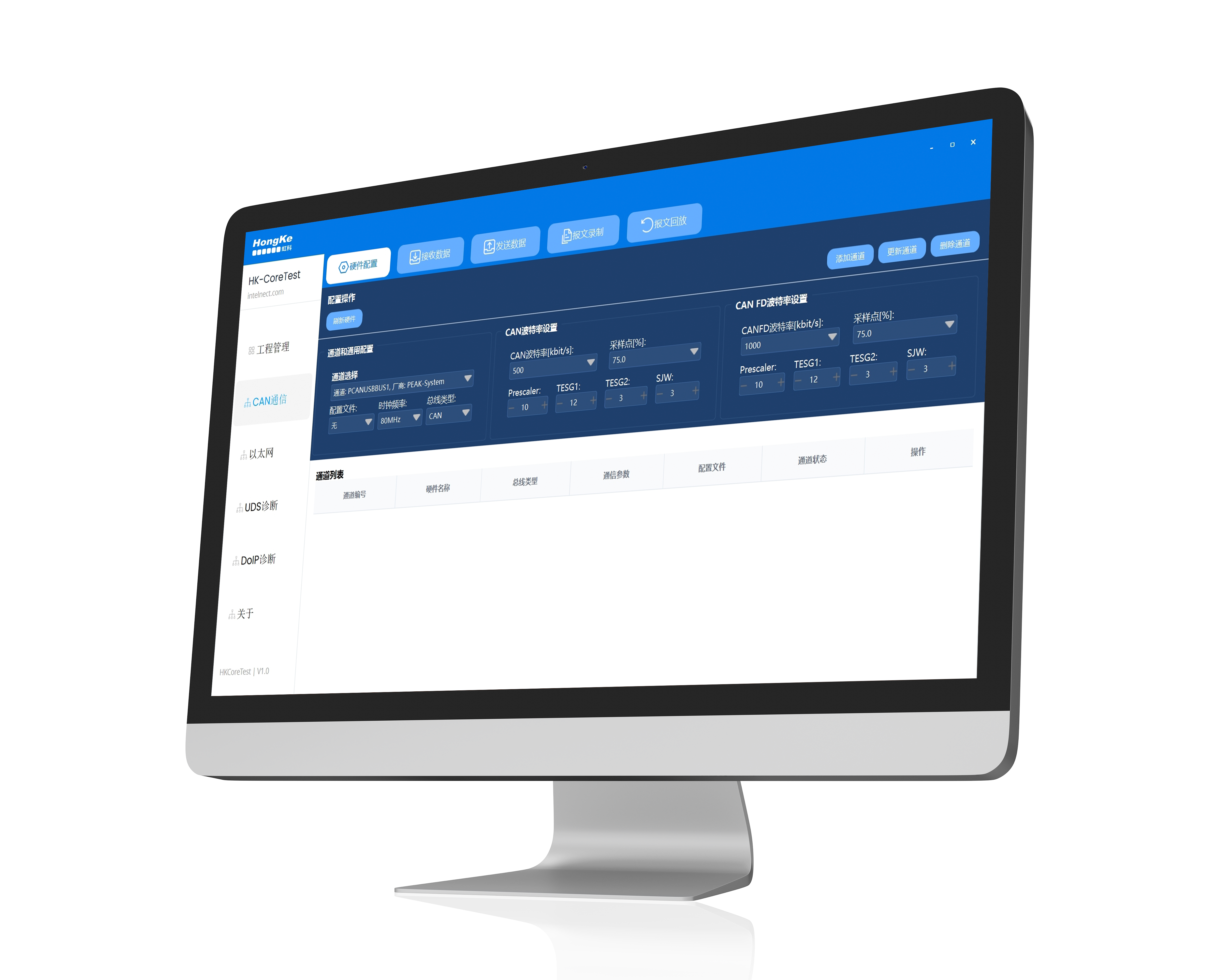
HK-CoreTest is a comprehensive in-vehicle bus test software designed for automotive electronics simulation and testing. It supports CAN/CAN FD and in-vehicle Ethernet protocol monitoring, message sending/receiving, diagnostics, and database parsing, which enables comprehensive analysis and troubleshooting of bus communication.

HK-CoreTest Core Features Overview

HK-CoreTest is a comprehensive tool for automotive electronic simulation and testing, supporting various in-vehicle communication protocols such as CAN (FD), Car Ethernet, etc., database parsing such as DBC, UDS diagnostics, and is compatible with many brands of toolchains in the market. It can connect, configure and control all the Avision hardware (e.g. Avision Telematics test boards, PCAN-USB/PCIe series, Car Ethernet tools, etc.) with automotive bus monitoring, simulation and diagnostic functions.

  • Supports CAN/CAN FD, in-vehicle Ethernet (coming soon) data processing.
  • Supports DBC, ARXML (coming soon) databases
  • Transmission/Monitoring/Playback of reports
  • Provide bus statistics and record function
In-vehicle Ethernet communication, UDS, DoIP diagnostic service, etc.

Click to view original image

HK-CoreTest Software Features

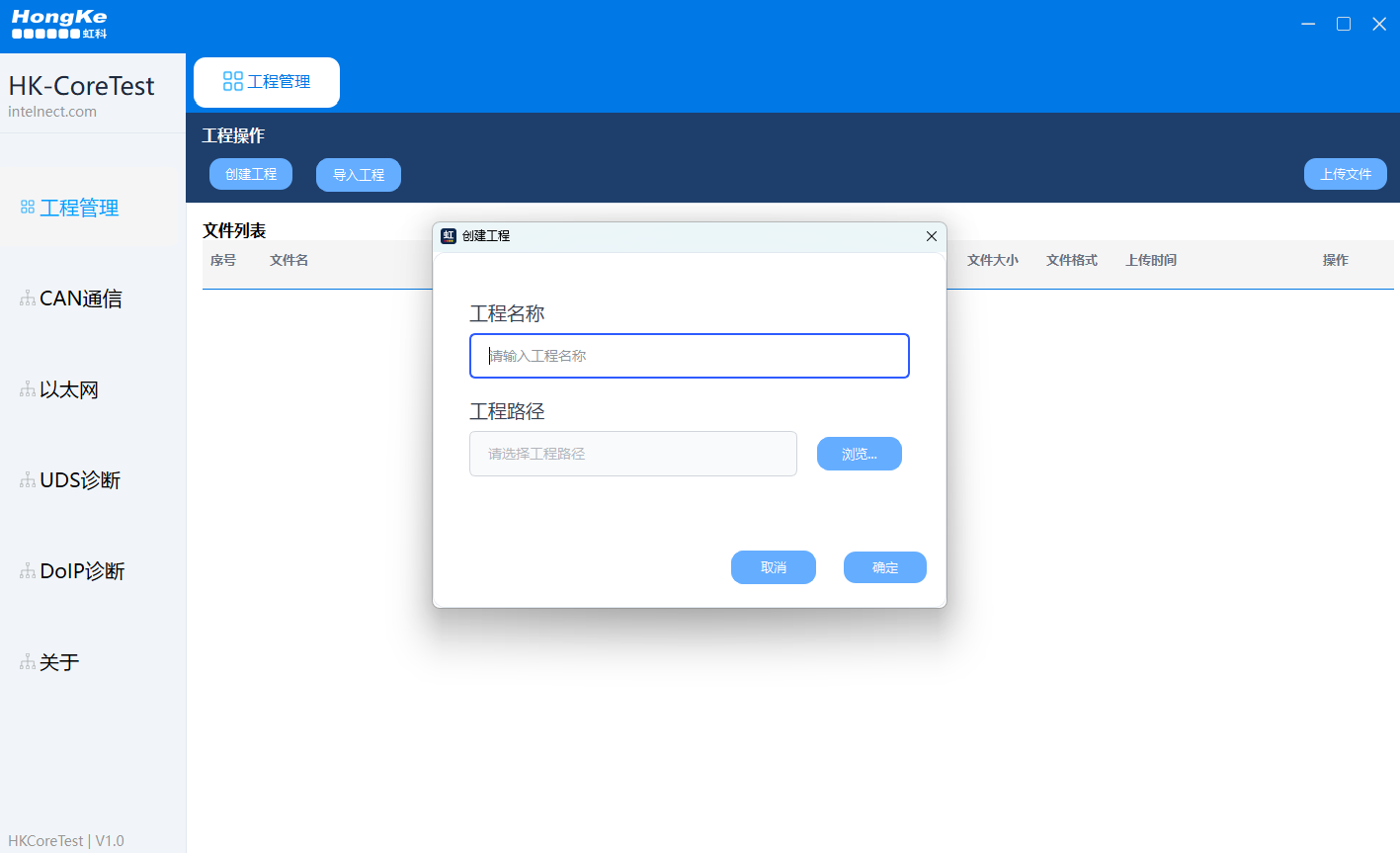
  • Establishment of new works:Users can build a complete test environment from scratch, including setting up project name and storage path, selecting initial hardware configuration templates, etc.
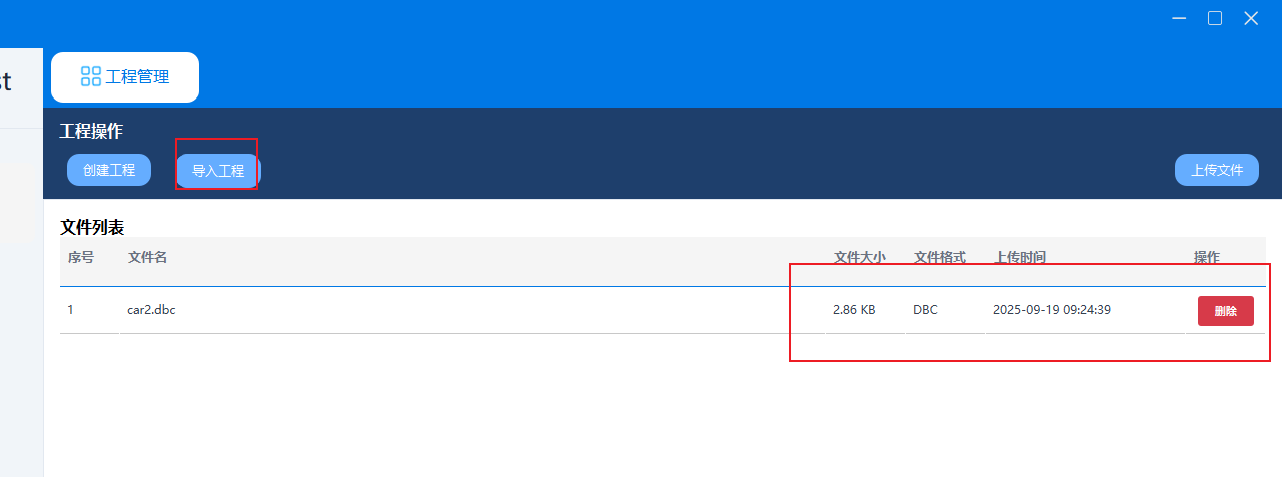
  • To be imported into the existing works:Allows users to open and continue a previously saved project file, which can completely restore the original working status, including all hardware settings, message database and send/receive configurations.
  • Project status management and monitoring:Provides a global view and centralized control of the entire project operation status.
  •  
  • TCP/UDP/SomeIP Agreement
  • UDS Agreement
  • DoIP Agreement
  • Hardware Configuration: Supports CAN device vendor and channel settings, standard CAN baud rates (125K-1M) and CAN FD high speed baud rates (up to 8M).
  • CAN Newspaper Transmission: Supports CAN and CAN FD message sending, and you can set the transmission period, message ID, data content, etc. Users can simulate the ECU (Electronic Control Unit) to actively send messages on the bus.
  • CAN message reception: Receives real-time reports on the CAN bus, supports multiple filtering modes, and the software listens to and decodes all activity on the bus and displays it in a clear, easy-to-read format (e.g., timestamps, IDs, data, directional Rx/Tx, cycles, etc.).
  • Newspaper recording: Records CAN bus communication data and supports data export to save the original communication data on the bus as a file (e.g. .asc, .blf, etc.) in real time.
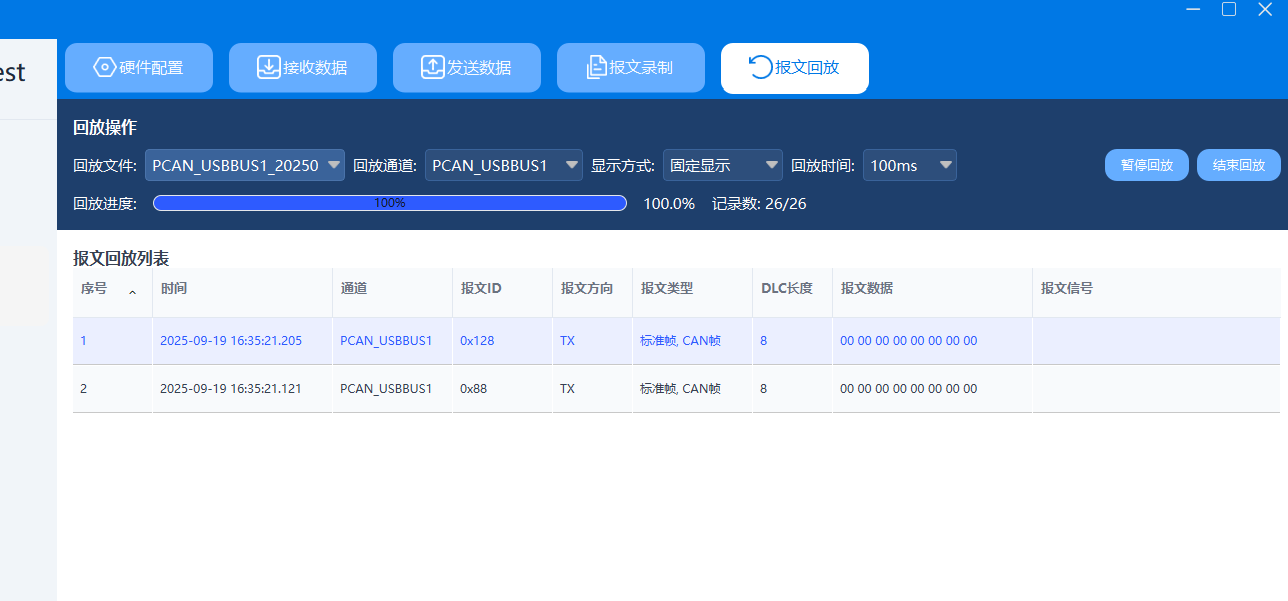
  • Newspaper Rewind: Recorded CAN communication data can be played back to resend the saved log files to the bus in the original chronological order to simulate a real network environment.
  • Supports parsing of automotive network database files such as DBC: After being imported into the database, the software automatically parses the hexadecimal message data into signal values with name and physical meaning.
  • Data editing and display at the signal level: When sending a message, users can directly modify a single signal value, and the software will automatically convert the physical value to correct binary data according to the database definition and fill in the message.

HK-CoreTest Quick Start Guide

Interface Overview

(Click to view original image)

[New construction]

(Click to view original image)

[Import Project]

(Click to view original image)

  1. Create or import projects in [Project Management] (enable other page functions).
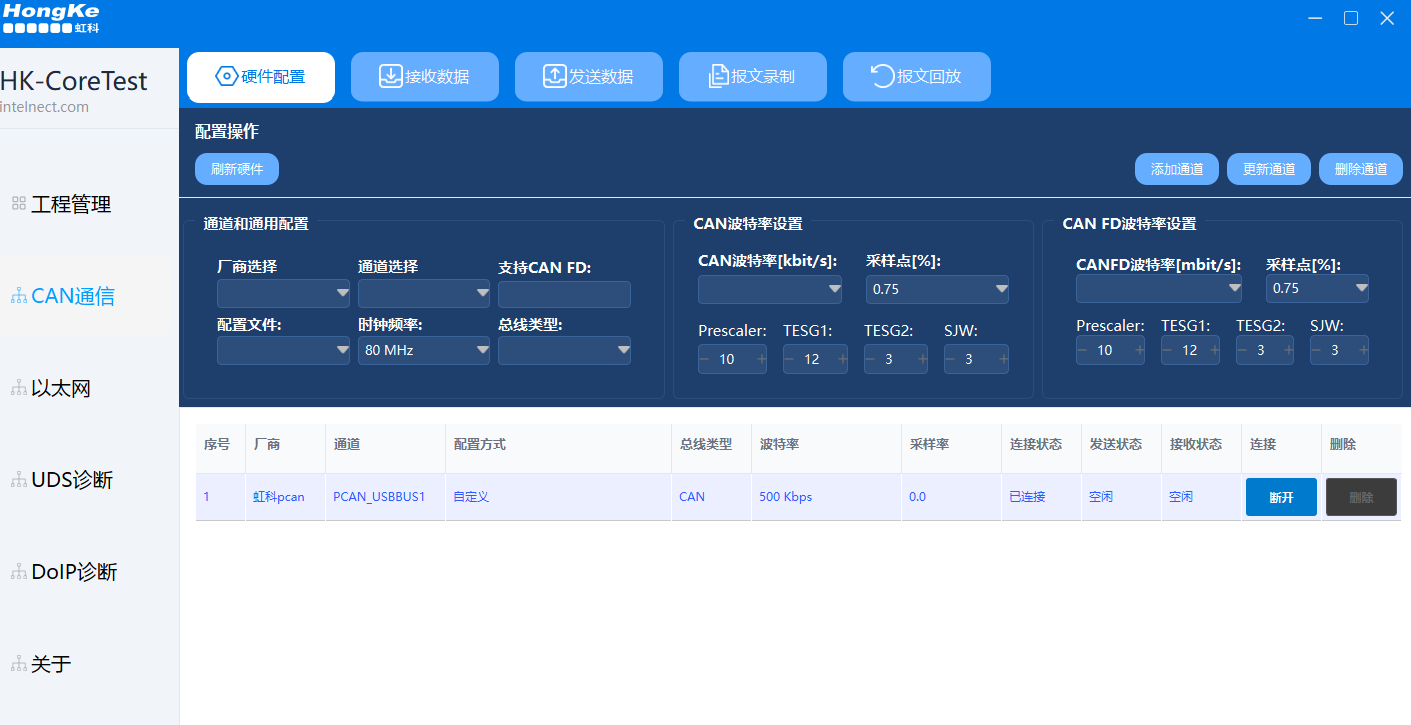
  2. Complete the device connection and parameter settings in [CAN Communication] → [Hardware Configuration].
  3. To send data, switch to [Send Data]; to receive data, switch to [Receive Data].
  4. You can perform the [Report Recording/Playback] operation on demand.

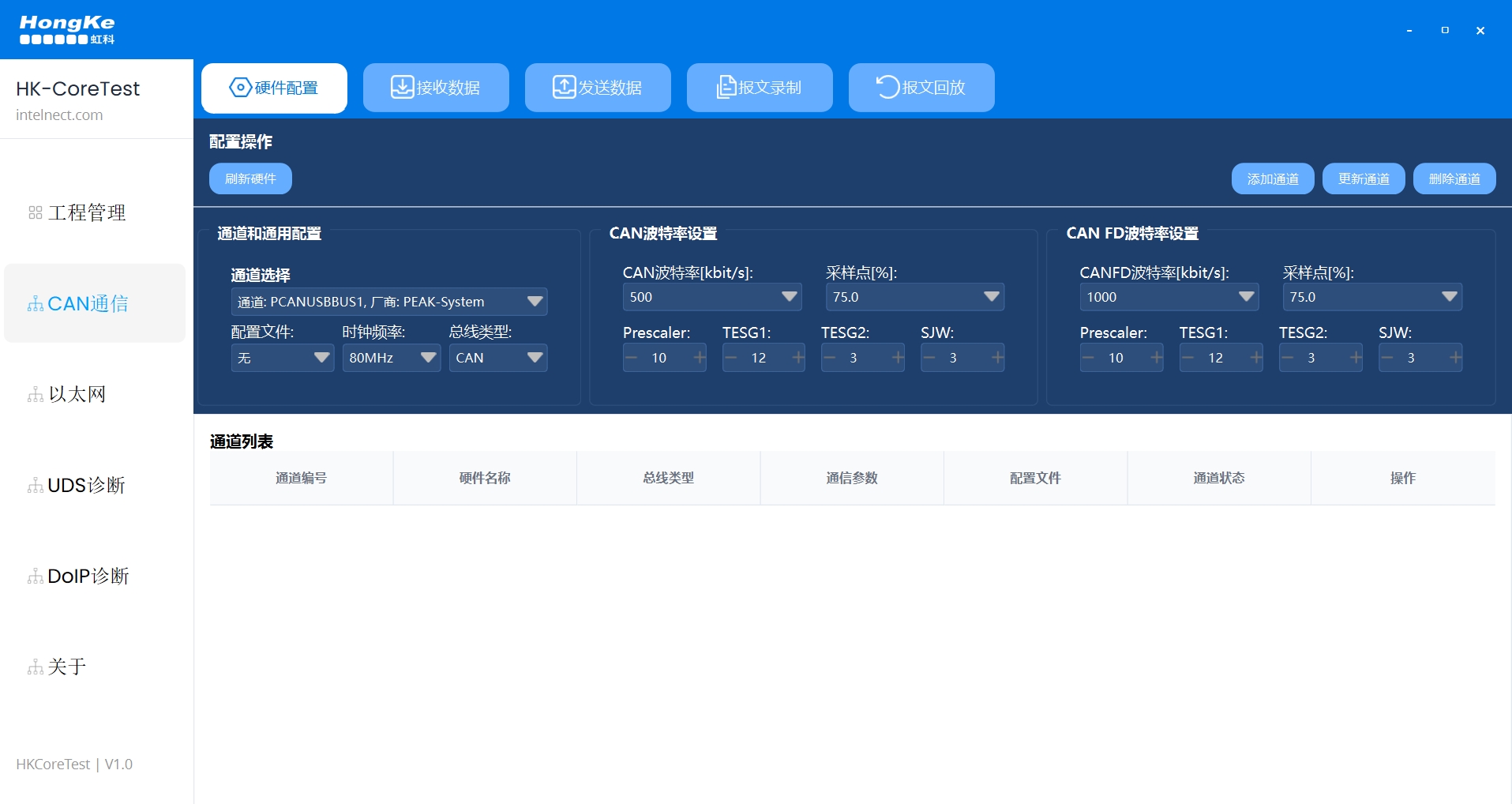
Sidebar [CAN Communication] → Top tab [Hardware Configuration

  1. Tap [Refresh Hardware] to get the device.
  2. Vendor Selection, Channel Selection: Select the corresponding equipment and channel in the [Vendor Selection/Channel Selection] drop-down menu.
  3. Confirm that the [CAN FD Support] indication is correct.
  4. Setting [Configuration File], [Clock Frequency], [Bus Type], [Listening Mode] (adjusted according to actual hardware or demand).
  5. Configure the CAN baud rate and sampling points: set Prescaler, TESG1, TESG2, SJW.
  6. If you use CAN FD, you need to set the baud rate and related parameters of Data-Phase as well.
  7. Click [Connect] in the last column of the form, and the status of the device will be displayed as "Connected" after success.
    *Hint: When the device is in the "Connected" state, the [Delete] button will be deactivated; if you need to delete, please [Disconnect] first.

(Click to view original image)

Sidebar [CAN Communication] → Top label [Receive Data

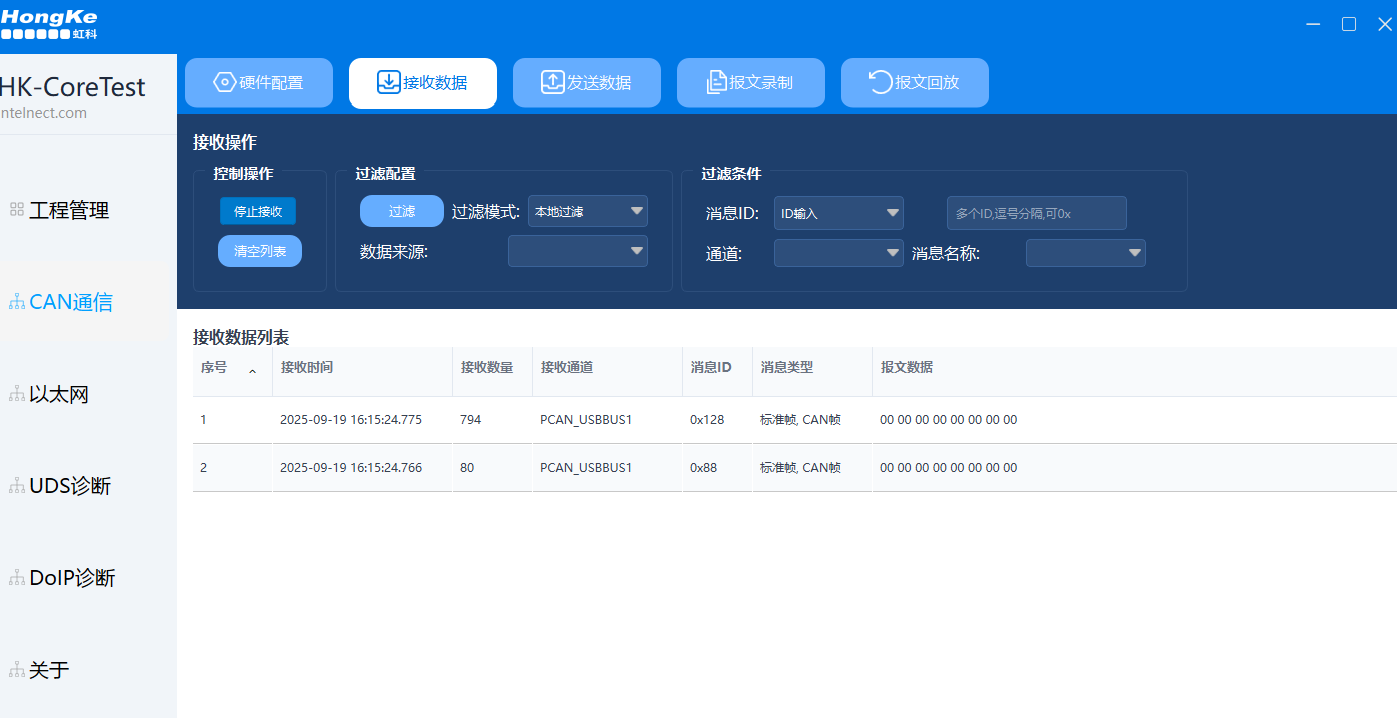
  1. Click [Start Receiving] in [Control Operation].
  2. Filtering modes can be set: [Hardware Filtering], [Local Filtering], [Hardware + Local Filtering].
  3. Filter condition support:
     - Message ID: DBC-ID/ID input (comma separated, 0x prefix supported)/ID range
     - Passage: Select a specific receiving channel
     - Message Name: Select from loaded DBC files
  4. Click [Filter] to apply conditions; click [Clear List] to clear the table.

*Form field descriptions: Serial Number, Receive Time, Receive Count, Receive Channel, Message ID, Message Name, Type, Data, Signal.

(Click to view original image)

Sidebar [CAN Communication] → Top tab [Send Data

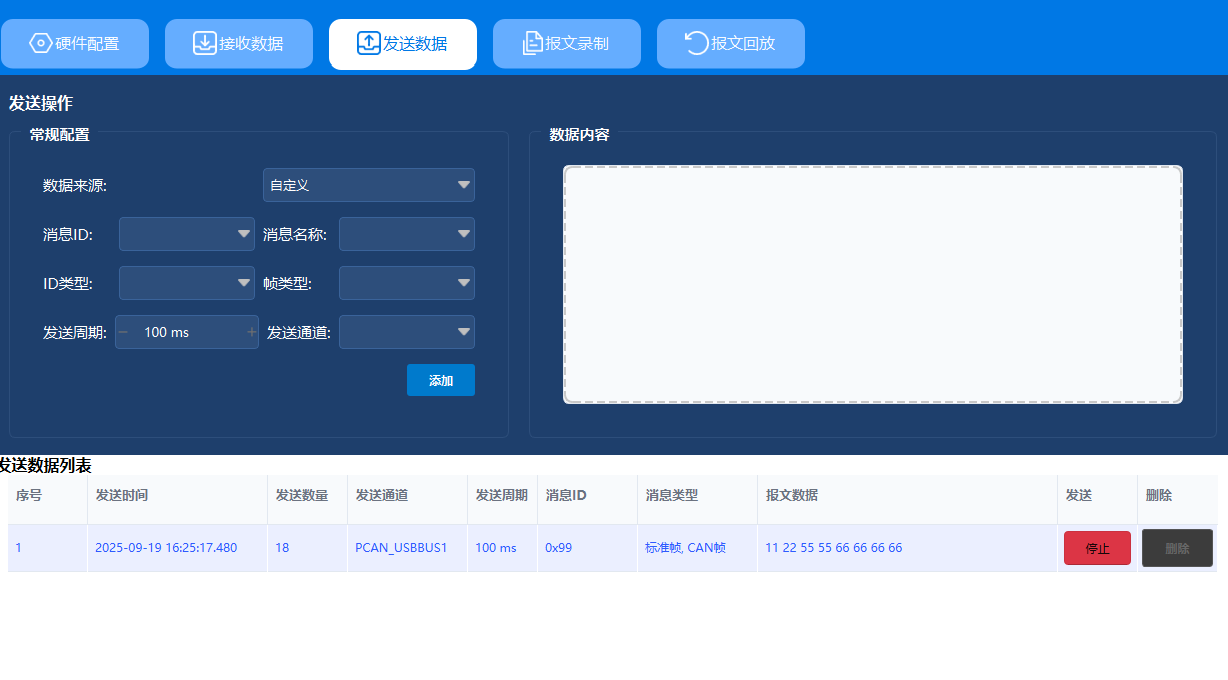
  1. Left [GENERAL SETTINGS
  • Data Source: Hexadecimal input or signal editing can be selected (requires database).
  • Message ID, Message Name: You can enter it directly or select it from the drop-down menu.
  • ID Type, Frame Type: Standard frame/extended frame, data frame/remote frame, CAN/CAN FD.
  • Send cycle: 10 ms - 10000 ms.
  • Send the channel: Select the channel that has been connected in [Hardware Configuration].
  • Click [Add] to add the setting to the Send list.

2. Right [Data Content].

  • Hexadecimal tables: 4 rows × 8 columns layout, support double-click editing and Tab navigation.
  • Signal table: Edit by signal name and value, and the system will apply constraints (unit, range, etc.) automatically.

3. Lists and controls

  • [Start Sending] / [Stop Sending]: Controls the global sending task.
  • You can delete a single entry in the [Action] column of the list.

4. single send
By default, clicking the Send button is a recurring send; for a single send, double-click the corresponding form row.

(Click to view original image)

Sidebar [CAN Communication] → Top tab [Newspaper Recording] / [Newspaper Playback

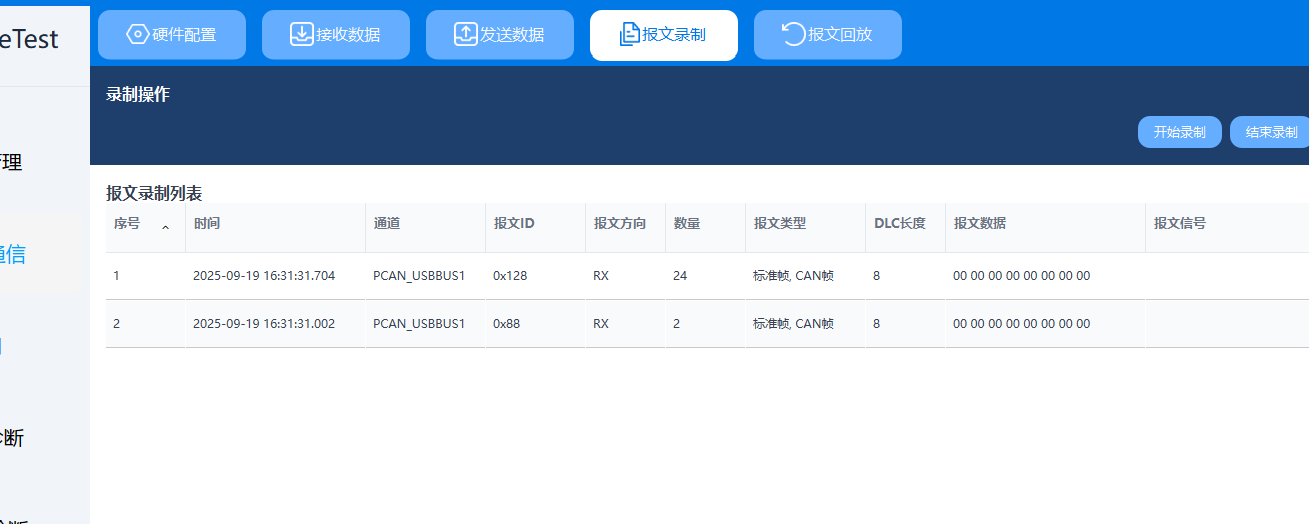
[Report Recording]: Starts/stops recording the received data and saves it as a local file.

(Click to view original image)

Report Playback]: Select a recorded file, set the playback rate and channel, and then perform the playback.

(Click to view original image)

PCAN-View, PE6, HK-CoreTest Software Comparison

Dimension PCAN View PCAN-Explorer 6 HK-CoreTest
functional positioning
Infrastructure monitoring, messaging and lightweight logging
Advanced analysis, simulation, parsing, playback and automated test control
CAN and Ethernet integrated software for sending, receiving, recording, playback, database analysis, simulation, diagnostics and brushing.
Agreement Support
CAN/CAN FD Basic Agreement
Extended Support J1939, Self-Definition DBC Analysis
Supports Ethernet protocols such as CAN/CAN FD, SOME/IP, DoIP, etc., with extended support for DBC/ARXML parsing.
Data Logging
100,000 entries (.trc format)
No specific upper limit, support for time-slotted tracking records
No specific upper limit, supports time-slotted tracking records
Expansion
No plug-ins, just the basics
Supports Plotter Plug-in, Dashboard Plug-in, VBScript, Custom DLL loading.
Supports advanced features such as UDS and DoIP simulation.
Hardware Compatibility
Compatible with PEAK hardware
Compatible with full range of PEAK hardware, supports multi-channel parallelism
Supports multi-brand hardware such as Vector, IXXAT, ZLG, Tongxin, Intex, etc. and supports multi-channel parallelism.
Software Format
Install the driver and you're ready to go!
Stand-alone and removable USB-dog licenses available
Driver-less, basic version open; diagnostic functions licensed per module (standalone/USB-dog)
Applicable people
Novice, Maintenance Engineer, Temporary Test Requirements
Development engineers, system integrators, research organizations
Beginners, maintenance engineers, development engineers, system integrators, diagnostic service units, research institutes
Experience
Simple and easy to use interface
Full-featured but complicated operation, requires certain learning cost.
Chinese interface, simple and intuitive, easy to get started, very low learning cost.

Professional technical support from HONGKEI to help you succeed in your project.

As a provider specializing in machine vision and optoelectronic inspection solutions, Avision is also committed to providing you with a range of paid technical services related to this product, aiming to help you succeed in your project in the most cost-effective way. Please contact us if you need technical services related to this product!

Contact Hongke to help you solve your problems.

Let's have a chat